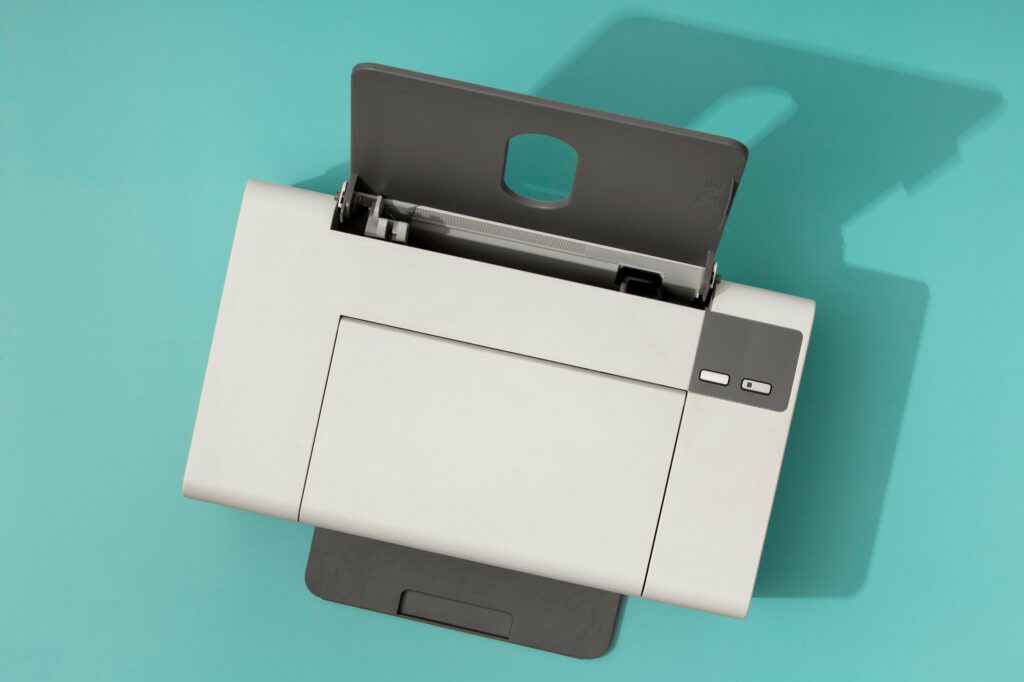
In modern offices, sharing a printer is essential. Multiple employees using a single printer saves money, reduces office clutter, and simplifies workflow. Whether you have a multifunction printer (MFP), laser printer, or wide-format device, setting up network sharing ensures everyone can print efficiently.
This guide covers how to share a printer on your office network, best practices, and troubleshooting tips to keep your team productive.
Why Share a Printer?
Sharing a printer on a network provides several benefits:
- Cost savings: Fewer devices means lower toner, paper, and maintenance costs.
- Convenience: Employees can print from any connected workstation without moving files manually.
- Centralized management: IT staff can monitor usage, manage supplies, and maintain one or two devices instead of many.
- Support for hybrid offices: Shared printers can be accessed by employees in multiple departments or floors.
Step 1: Choose the Right Printer for Sharing
Not all printers are ideal for network sharing. Look for:
- Network-ready printers: Ethernet or Wi-Fi capable
- Multifunction features: Copy, scan, and fax from multiple devices
- Sufficient duty cycle: Ensure the printer can handle your office’s monthly volume
- Security features: Secure print release, user authentication, and encryption
High-volume offices may benefit from laser printers or production devices to support heavy usage.
Step 2: Connect the Printer to the Network
Wired Connection (Ethernet)
- Plug the printer into your office router or switch.
- Assign a static IP address for consistent network access.
- Ensure the subnet and gateway match your office network configuration.
Wireless Connection (Wi-Fi)
- Connect the printer to your office Wi-Fi network.
- Enter the SSID and password on the printer’s control panel.
- Confirm connection by printing a network configuration page.
Step 3: Install Printer Drivers on All Devices
For each computer or workstation that needs access:
- Download the latest printer drivers from the manufacturer’s website.
- Install drivers and follow the prompts to connect to the network printer.
- Verify connectivity by printing a test page.
Tip: For offices with mixed devices (Windows, Mac, Linux), ensure all drivers are compatible.
Step 4: Share the Printer Through Your Operating System
Windows
- Go to Control Panel → Devices and Printers.
- Right-click the printer → Printer Properties → Sharing tab.
- Check “Share this printer” and give it a share name.
- Optional: Enable rendering print jobs on client computers to reduce network load.
Mac
- Open System Preferences → Printers & Scanners.
- Select the printer → Share this printer on the network.
- Ensure Windows sharing is enabled if cross-platform printing is required.
Linux
- Use CUPS (Common Unix Printing System).
- Add the printer → Enable sharing → Adjust permissions for users or groups.
Step 5: Configure Security and Permissions
Network sharing introduces potential risks. To keep documents safe:
- Set user permissions: Limit printing access to specific employees or departments.
- Enable secure print release: Documents print only after authentication at the device.
- Monitor usage: Track who prints what, useful for cost allocation and auditing.
- Encrypt connections: Protect sensitive data over Wi-Fi or VPN connections.
Step 6: Optimize Network Printing
- Assign static IP addresses for all shared printers to avoid conflicts.
- Use quality cabling or Wi-Fi access points for stable connectivity.
- Regularly update drivers and firmware to prevent compatibility issues.
- Consider a print server for larger offices with multiple printers and heavy traffic.
A print server centralizes management, queues jobs efficiently, and improves reliability.
Step 7: Troubleshooting Common Issues
| Problem | Solution |
| Printer not visible | Check network connection, IP address, and driver installation |
| Print jobs stuck in queue | Clear queue, restart printer and workstation, reinstall driver if needed |
| Slow printing | Enable client-side rendering, check network bandwidth, or upgrade to wired connection |
| Cross-platform issues | Ensure compatible drivers for all OS types and enable Windows/Mac/Linux sharing protocols |
Step 8: Consider Managed Print Services (MPS)
For offices with multiple shared printers, MPS providers can:
- Monitor device usage across the network
- Automate toner and ink delivery
- Perform proactive maintenance to prevent downtime
- Provide reporting on print volume and costs
Benefits of Network Printing
- Reduced Costs: Consolidating devices saves money on supplies and maintenance.
- Improved Productivity: Employees can print from anywhere in the office.
- Enhanced Collaboration: Teams share documents efficiently without moving files manually.
- Better Device Management: IT can monitor usage and optimize printer allocation.
Sharing a printer on your office network is essential for modern businesses, especially in hybrid or multi-department environments. By following these steps—choosing the right printer, connecting it to the network, installing drivers, configuring security, and optimizing workflow—you can create a reliable, cost-efficient, and secure printing setup.
Emerald Document Imaging helps offices set up networked printers, providing guidance, installation, and ongoing support for shared multifunction printers, production devices, and desktop printers.
For businesses in Long Island, NYC, and the New York metro area, implementing network printing ensures employees can print efficiently, reduce downtime, and maximize productivity across teams.
Contact us today for a free consultation and office print assessment →