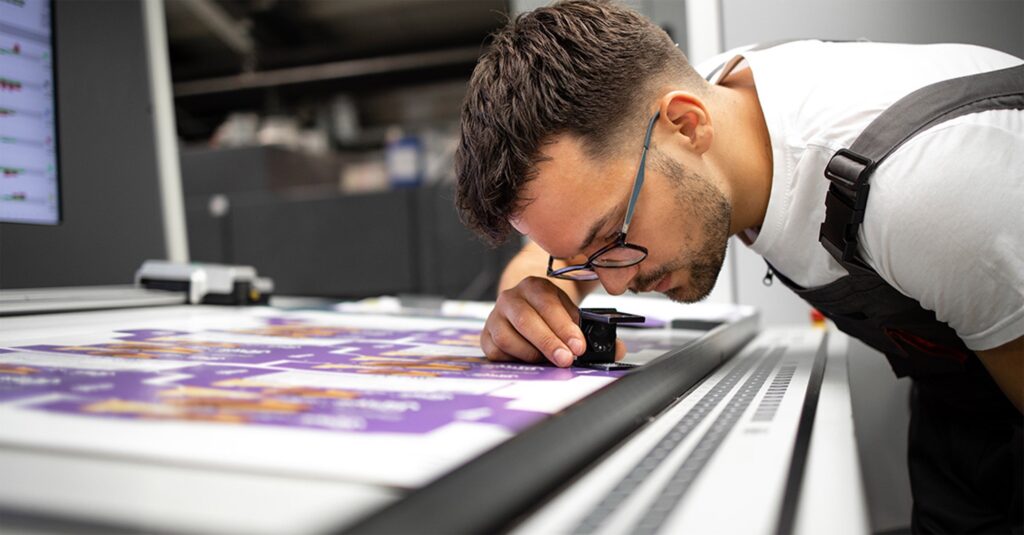
When you’re running high-volume or production printing, even small print quality issues can cause huge delays, wasted materials, and frustrated clients. Whether you’re producing marketing materials, reports, or proofs for design projects, consistency and clarity are key.
If your production printer is producing streaks, faded colors, or uneven prints, don’t panic. These problems are common and fixable. Below, we’ll cover the most frequent print quality issues and the best ways to diagnose and fix them, along with tips to prevent them in the future.
This guide focuses on businesses running in-house or commercial print environments.
1. Streaks or Lines Across the Page
What’s happening:
Horizontal or vertical streaks usually indicate a problem with the drum unit, fuser, or developer roller. It might also be toner buildup or debris on an internal component.
How to fix it:
- Run your printer’s cleaning cycle. Most production printers have a built-in option in the maintenance menu.
- Inspect and clean the drum or imaging unit using a lint-free cloth (never touch the surface directly).
- Check for toner clumps or debris inside the printer. Use compressed air to gently clear them.
- If streaks persist, replace the imaging unit or fuser.
Prevention tip:
Regularly clean your printer and run test prints before big jobs. Many Ricoh and Canon production printers include automated cleaning routines. Use them weekly.
2. Faded or Uneven Colors
What’s happening:
Uneven density or faded color patches often point to low toner, a worn drum, or miscalibrated color settings. Inconsistent humidity or temperature in the print environment can also impact print density.
How to fix it:
- Check toner levels. Replace cartridges if they’re near empty.
- Run a color calibration from your printer’s control panel or RIP software.
- Ensure the paper type in the driver matches the paper in the tray.
- If fading persists, clean or replace the transfer belt or drum unit.
Prevention tip:
Perform monthly calibration, especially if your environment fluctuates in temperature or humidity. This helps maintain consistent toner adhesion.
3. Blurry or Ghosted Images
What’s happening:
Blurry prints or “ghosting” (a faint image from a previous page repeating on the next one) is often due to a worn fuser roller, transfer roller issues, or incorrect fuser temperature.
How to fix it:
- Check that the paper type setting matches the media in use. Wrong settings can affect fuser heat and pressure.
- Clean the fuser or replace it if it’s near end-of-life.
- Ensure your power supply is stable. Inconsistent voltage can affect fuser performance.
Prevention tip:
Schedule fuser maintenance after every 200,000–300,000 pages printed (depending on your printer model).
4. Banding or Stripes in Color Areas
What’s happening:
Banding looks like horizontal or vertical stripes in areas of solid color. This often results from print head misalignment, low toner, or software-related RIP issues.
How to fix it:
- Run a print head alignment or calibration routine.
- Verify toner and drum health. Uneven distribution can cause visible bands.
- Update your printer firmware and RIP software drivers.
- If you’re printing from a design file, ensure your color mode (CMYK vs. RGB) matches the printer’s settings.
Prevention tip:
Use manufacturer-recommended drivers and software. Avoid third-party RIPs unless they’re fully compatible with your production printer.
5. Smearing or Toner Rubbing Off
What’s happening:
If prints smudge easily or toner flakes off, it means the toner isn’t fusing properly to the paper. This is a fuser or temperature problem or, in some cases, using incompatible media.
How to fix it:
- Check that you’re using approved paper stock for your printer model.
- Clean the fuser rollers.
- Increase fuser temperature in the printer settings (if adjustable).
- Replace the fuser if it’s past its rated lifespan.
Prevention tip:
Always store paper in a climate-controlled environment and run a quick test print before long runs on coated or specialty media.
6. Color Mismatch or Inaccurate Shades
What’s happening:
If your blues look purple or your brand colors seem off, it’s likely due to color calibration issues, outdated ICC profiles, or ink/toner inconsistencies.
How to fix it:
- Perform a color calibration using your printer’s built-in tool or color management software.
- Verify your color profiles in the design file (CMYK vs. RGB).
- Make sure you’re using genuine toner and not third-party refills, which can produce color variations.
- Clean print heads and replace any low-yield cartridges.
Prevention tip:
Create and save custom color profiles for recurring projects. This ensures brand consistency across all materials.
7. Wrinkled or Curling Paper
What’s happening:
This is typically a moisture or heat issue, often caused by improper paper storage or an overheated fuser.
How to fix it:
- Store paper in a cool, dry area and keep it sealed until use.
- Make sure the fuser temperature isn’t too high for the paper weight.
- Fan the paper stack before loading it to prevent sheets from sticking.
Prevention tip:
Use media designed for production environments and monitor your shop’s humidity levels — 40–60% is ideal for stable print quality.
8. Repeated Paper Jams During Production
What’s happening:
Frequent jams can lead to streaks, tears, or roller marks. Causes include worn feed rollers, incorrect paper settings, or dust buildup.
How to fix it:
- Clean paper feed rollers with a lint-free cloth.
- Check paper settings in the driver (weight, size, type).
- Remove jammed paper carefully to avoid tearing and leaving fragments inside.
- Replace worn rollers if jams keep recurring.
Prevention tip:
Run regular maintenance checks, especially before large print jobs, and use high-quality, compatible paper stock.
9. Print Density Too Light or Too Dark
What’s happening:
Uneven density or over-saturated prints indicate a toner distribution issue, developer problem, or incorrect density settings.
How to fix it:
- Run a developer refresh or “toner density adjustment” from the control panel.
- Check toner cartridges for even distribution.
- Clean sensors inside the printer (follow manufacturer’s instructions).
- Adjust the density settings in your RIP software.
Prevention tip:
Use high-quality toner and keep firmware up to date. Manufacturers often release patches to improve toner control.
10. Software or File-Related Issues
What’s happening:
Sometimes, print quality issues aren’t mechanical, they stem from file formatting problems, unsupported fonts, or improper color modes in design files.
How to fix it:
- Always export print files as PDF/X-1a or PDF/X-4 to lock in fonts and color data.
- Avoid using RGB color profiles for print jobs, switch to CMYK.
- Check resolution: images should be at least 300 DPI for sharp results.
- Ensure your RIP software is updated and compatible with your design tools.
Prevention tip:
Create a standard preflight checklist before submitting files for production.
When to Call for Service
If you’ve tried these fixes and the problem persists, it may be time to schedule professional service. Warning signs include:
- Persistent streaks even after replacing the drum or toner
- Recurrent jams in the same location
- Loud grinding noises or overheating
- Inconsistent print density across multiple jobs
A certified technician can inspect rollers, fusers, and transfer belts to catch underlying mechanical wear before it leads to downtime.
Print quality issues are inevitable in high-volume environments, but they don’t have to slow your operation down. Understanding the root causes and following best practices helps you reduce waste, improve output quality, and extend the life of your production printers.
A proactive maintenance routine and workflow automation can make a huge difference in uptime and reliability.
Emerald Document Imaging provides expert support for Ricoh and Canon production printers. From workflow optimization to professional maintenance, we help New York City and Long Island businesses keep their print operations running at peak quality.
Contact us today for a free production print assessment or maintenance quote →