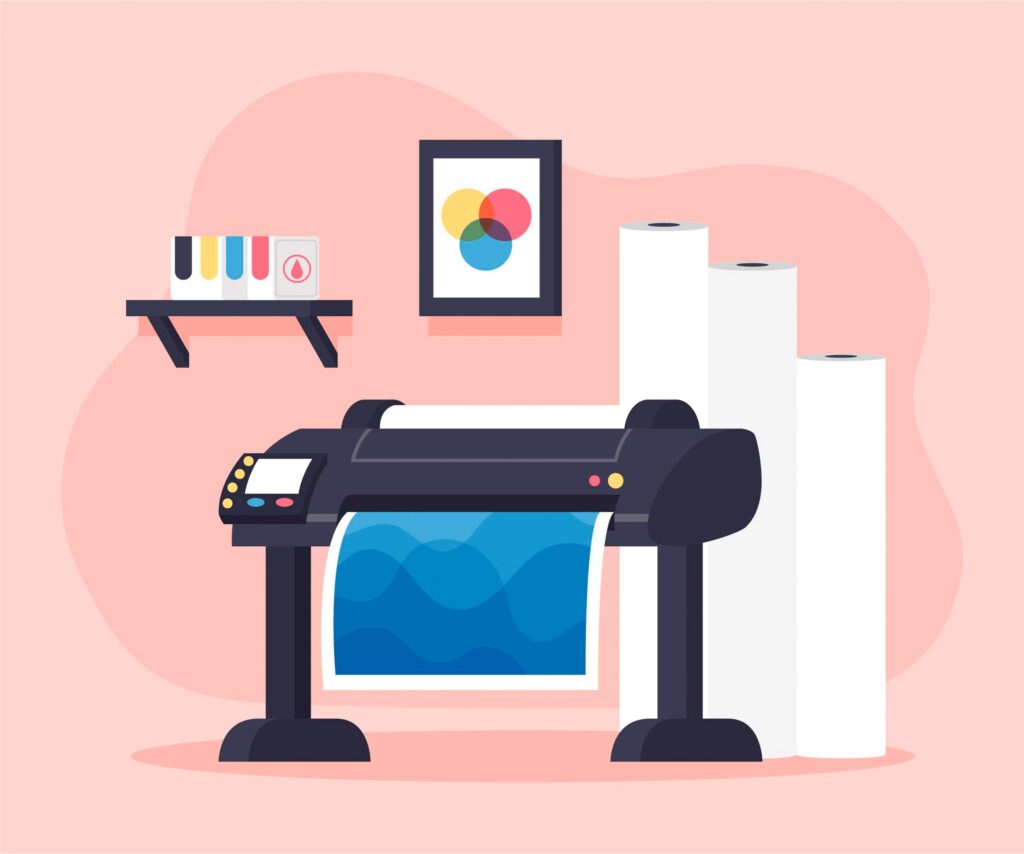
Color accuracy is one of the most important and most misunderstood elements of wide format printing. Whether you’re producing architectural renderings, retail signage, presentation boards, or branded marketing materials, inconsistent color can undermine professionalism and waste time and materials.
If you’ve ever printed a job that looked different from what you saw on screen, struggled with inconsistent output across multiple prints, or noticed shifts between media types, you’re dealing with color calibration issues.
Let’s break down the most common color calibration problems in wide format printing, what causes them, and how to fix them.
Why Color Calibration Matters
Wide format printing often involves:
- Brand-critical colors
- Client-facing visuals
- Large solid color areas
- Cross-department collaboration
- Multiple media types
When color is off, you may face:
- Reprints
- Client dissatisfaction
- Wasted ink and media
- Delays
- Higher production costs
Calibration ensures what you see on your screen matches what comes out of your printer as closely as possible.
1. Monitor and Printer Don’t Match
The Problem
One of the most common issues is this:
The file looks perfect on screen, but prints too dark, too dull, too warm, or too cool.
Why It Happens
Your monitor and your printer operate in different color environments:
- Monitors use RGB (light-based color)
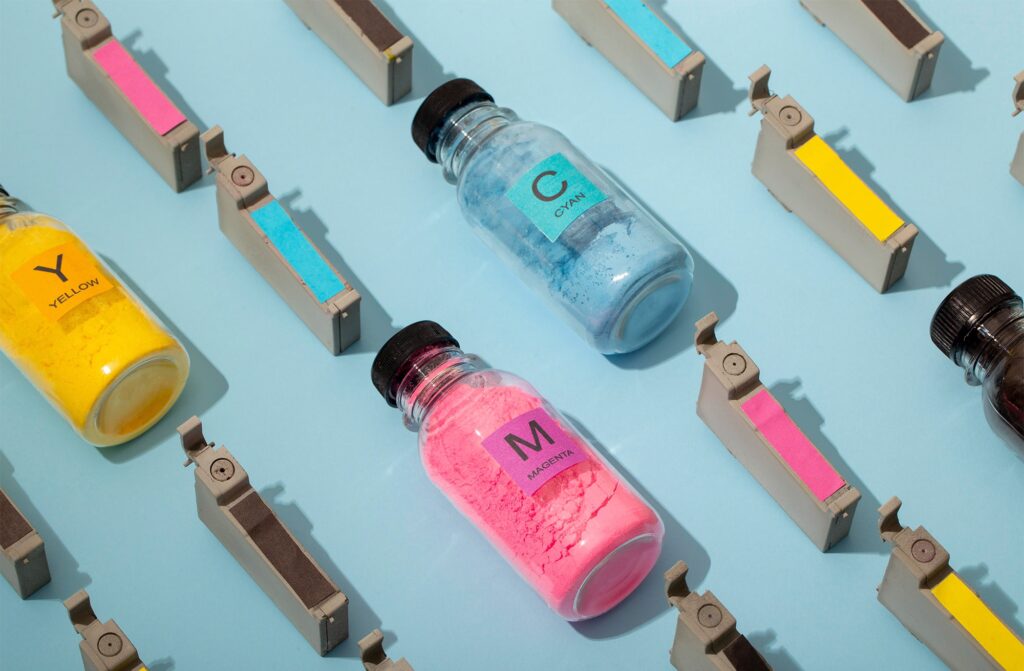
- Printers use CMYK (ink-based color)
If your monitor isn’t properly calibrated, you’re making decisions based on inaccurate color representation.
How to Fix It
- Use a hardware monitor calibration tool.
- Calibrate displays regularly (monthly is ideal).
- Reduce monitor brightness to realistic print levels.
- Ensure color profiles are correctly applied in your design software.
Without monitor calibration, printer calibration alone won’t solve the issue.
2. Incorrect or Missing ICC Profiles
The Problem
Colors shift dramatically when printing on different media, especially when switching from bond paper to vinyl or canvas.
Why It Happens
Each media type absorbs ink differently. ICC profiles tell the printer how to interpret color for specific media and ink combinations.
If you:
- Use the wrong profile
- Skip profile selection
- Use a generic driver
- Print without a RIP system
You may see:
- Muted colors
- Oversaturation
- Ink pooling
- Washed-out tones
How to Fix It
- Use manufacturer-recommended ICC profiles.
- Create custom profiles for specialty media if necessary.
- Confirm profile consistency across your workflow (design software → RIP → printer).
- Ensure only one system controls color management (avoid double color correction).
ICC mismatch is one of the most common calibration errors in wide format environments.
3. Inconsistent Color Between Print Runs
The Problem
You print a job today. You reprint the same file next week, and the colors look slightly different.
Why It Happens
Several variables can shift output:
- Temperature and humidity changes
- Ink age
- Media batch differences
- Printer maintenance cycles
- Firmware updates
Wide format printers are sensitive to environmental changes.
How to Fix It
- Maintain stable temperature and humidity.
- Store media properly.
- Run regular printer calibration routines.
- Perform nozzle checks before critical jobs.
- Standardize print settings and workflows.
Color consistency requires environmental control as much as software management.
4. Banding or Uneven Color Gradients
The Problem
Large solid color areas show streaks or lines instead of smooth gradients.
Why It Happens
Banding may be caused by:
- Clogged nozzles
- Incorrect print head alignment
- Low-resolution print mode
- Poor media quality
- Ink delivery inconsistencies
Although this is sometimes considered a mechanical issue, it often presents as a color calibration problem.
How to Fix It
- Run nozzle checks and cleaning cycles.
- Perform head alignment.
- Increase print resolution if necessary.
- Ensure proper media compatibility.
- Verify that print speed is appropriate for the job.
Banding often requires a combination of calibration and maintenance.
5. Color Looks Correct on One Media Type but Not Another
The Problem
Your color looks perfect on coated paper, but dull or oversaturated on vinyl or canvas.
Why It Happens
Different media:
- Reflect light differently
- Absorb ink differently
- Have different surface textures
- Use different coating technologies
Each material requires its own calibration profile.
How to Fix It
- Assign correct ICC profiles for each media type.
- Avoid using “one size fits all” color settings.
- Test small sections before full production runs.
- Confirm correct ink limits for that substrate.
Media-specific calibration is essential for accurate output.
6. Over-Saturation or Ink Bleeding
The Problem
Dark areas look muddy. Fine details blur. Ink appears to bleed slightly.
Why It Happens
Over-inking occurs when:
- Ink limits aren’t set correctly.
- Media coating cannot handle the ink volume.
- Incorrect media profile is selected.
- High-quality mode is used unnecessarily.
How to Fix It
- Adjust ink density settings.
- Confirm correct media selection in the driver or RIP.
- Use proper coated or treated substrates.
- Perform test prints before full jobs.
Proper ink management is a key part of calibration, not just color matching.
7. Brand Colors Don’t Match Corporate Standards
The Problem
Your company’s official blue or red prints slightly off-tone, even after calibration.
Why It Happens
Some brand colors fall outside standard CMYK gamut limitations. RGB files converted improperly can also shift tone.
How to Fix It
- Use Pantone or spot color references when possible.
- Use RIP software with advanced color matching.
- Create custom spot color tables.
- Verify correct color mode before printing.
Brand color consistency often requires a combination of software, profiling, and workflow discipline.
8. Double Color Management Conflicts
The Problem
Colors look dramatically off despite using correct profiles.
Why It Happens
Both your design software and your printer driver (or RIP) may be trying to manage color simultaneously.
This “double correction” results in unpredictable output.
How to Fix It
- Choose one system to control color management.
- Disable color management in the driver if using a RIP.
- Ensure consistent profile settings throughout the workflow.
Color management should happen once, not twice.
9. Printer Aging and Component Wear
The Problem
Color shifts gradually over time even without changing settings.
Why It Happens
Aging components can affect output:
- Print heads wear down.
- Ink delivery systems degrade.
- Internal sensors lose accuracy.
Older devices may struggle to maintain calibration consistency.
How to Fix It
- Perform regular calibration cycles.
- Replace worn components.
- Update firmware.
- Evaluate whether equipment replacement is necessary.
At some point, hardware limitations override software adjustments.
Preventative Best Practices for Color Calibration
To avoid recurring color problems:
- Calibrate monitors monthly.
- Use correct ICC profiles for every media type.
- Control environmental conditions.
- Maintain printers consistently.
- Standardize workflow settings.
- Train staff on proper color management procedures.
Consistency in process prevents inconsistency in output.
When Calibration Issues Signal a Larger Problem
If you’re frequently experiencing:
- Color drift
- Repeated reprints
- Customer complaints
- Excessive ink waste
- Inconsistent output across devices
The issue may go beyond simple calibration.
Older wide format printers may lack modern color engines, advanced RIP integration, and automated calibration tools that improve reliability.
In some cases, upgrading equipment reduces long-term waste and labor spent troubleshooting color problems.
Color calibration problems in wide format printing are rarely caused by a single issue. They typically result from a combination of:
- Profile mismatches
- Media differences
- Environmental factors
- Workflow inconsistencies
- Aging hardware
By understanding the root causes, you can reduce reprints, control ink costs, improve client satisfaction, and protect brand integrity.
If your wide format printer is producing inconsistent color or you’re unsure whether your calibration workflow is optimized, contact Emerald Document Imaging for a professional assessment and performance evaluation tailored to your production environment.