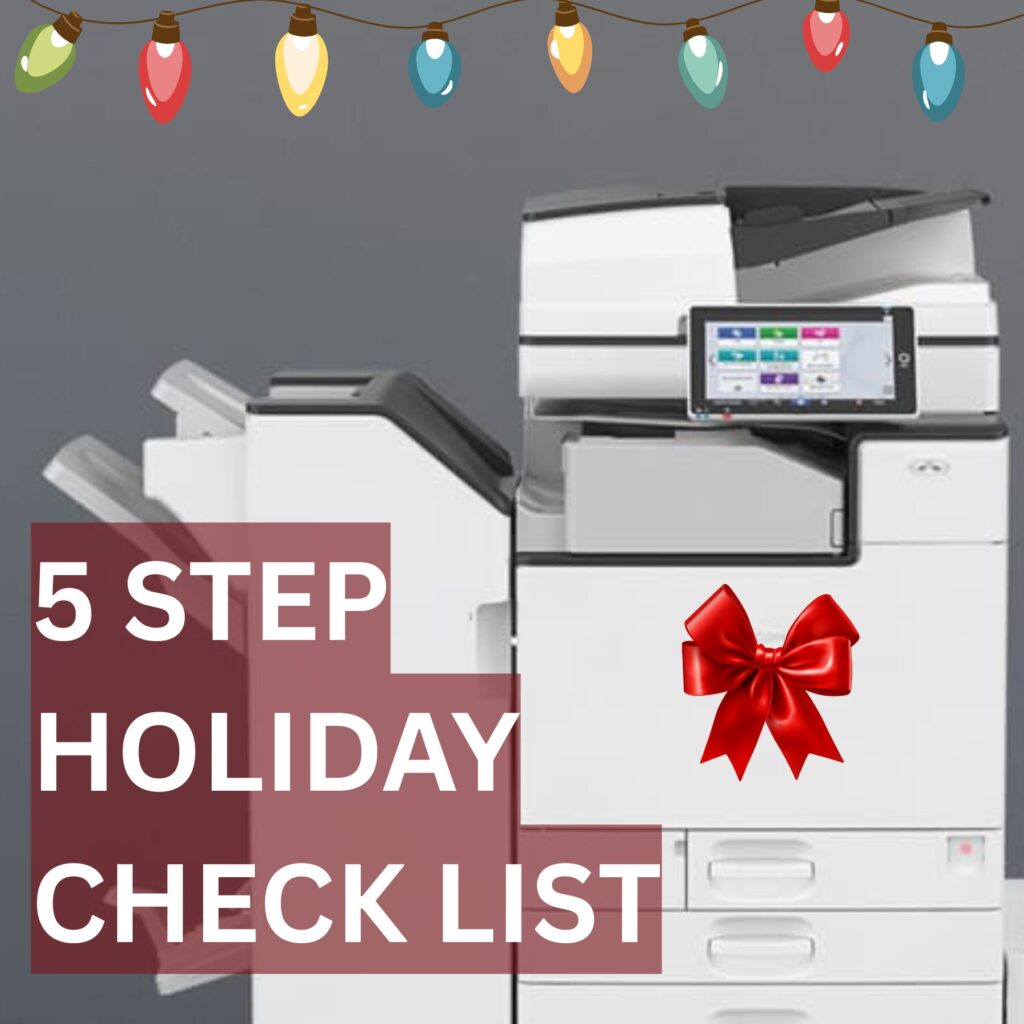
This article provides general printer care tips businesses often use to avoid common issues during extended office closures.
As the year winds down and the holiday parties ramp up, the last thing you want is a “Paper Jam” or a “Service Required” light standing between you and your well-deserved break.
Emerald Document Imaging wants to help you slide into the New Year smoothly. Our service team of certified technicians has put together this quick MFP Holiday Health Check. Taking the time to follow Emerald’s checklist will help reduce your need for service after the holiday season.
1. The “Deep Sleep” Protocol
If your office is closing for more than 3 days, ensure your devices are set to Power Save Mode.
- Emerald Tip: Don’t just pull the plug! Use the “Soft Power” button on the panel to let the machine go through its proper shutdown cycle. This protects the internal hard drive and prevents data corruption.
2. Clear the Print Queue
Before you leave, check your print queues. Delete any “Pending” or “Error” jobs.
- Why? When the whole office returns on Monday, January 5th, and everyone hits “Print” at once, those old stuck jobs can cause a system bottleneck or a massive waste of paper.
3. Toner & Supply Audit
Check your current toner levels now!
- The Goal: Ensure you have at least one full set of backup cartridges on the shelf. Shipping carriers are notoriously slow in late December—don’t get stuck waiting for a delivery during your first week back!
4. Clean the Scanner Glass
Holiday cards and end-of-year contracts mean heavy scanning. Use a lint-free cloth and a tiny bit of glass cleaner (spray the cloth, not the machine!) to wipe down the glass and the small ADF glass strip.
- Result: No more annoying streaks on those important 2026 digital archives.
5. Secure Your Data
If you’ve had a busy year, your MFP’s “Document Box” might be full of sensitive scans. Take a moment to delete old files stored locally on the printer’s hard drive to keep your data footprint small and secure.
Need help maintaining your office printers this holiday season? Get in touch with our service team →